


Use this guide when normal navigation is hidden, the screen still sleeps, or an embedded page will not load.
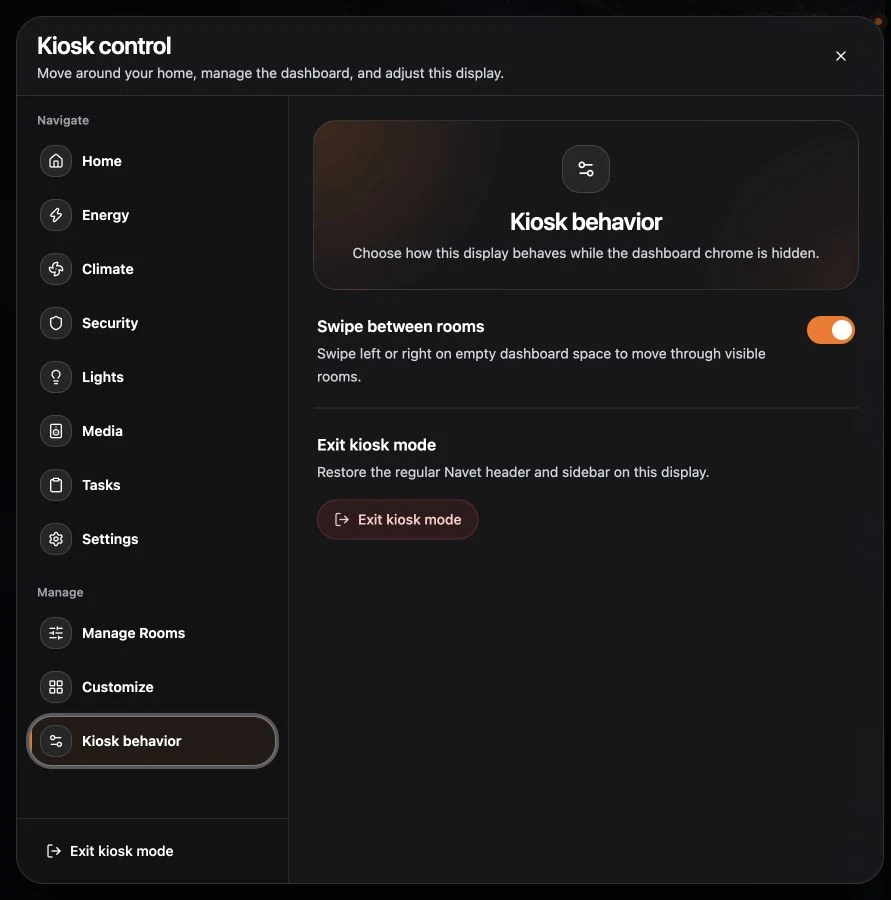
Exit kiosk mode
- Use the bottom-right More button to open Kiosk control.
- Choose Kiosk behavior.
- Choose Exit kiosk mode.
You can also open Settings → Display & controls, then choose Standard under Display preset or turn off Kiosk mode.
If Home Assistant’s outer chrome is also hidden, change or remove the optional shell module configuration from Home Assistant.
Check keep-awake
Open Settings → Display & controls → Keep device awake and read the status:
- Active via browser wake lock needs no action.
- Active via silent audio fallback is working through the fallback.
- Pending activation requires a user gesture.
- Blocked means the browser or device denied the method.
- Unsupported means neither path is available.
Choose Tap to activate fallback audio when shown.
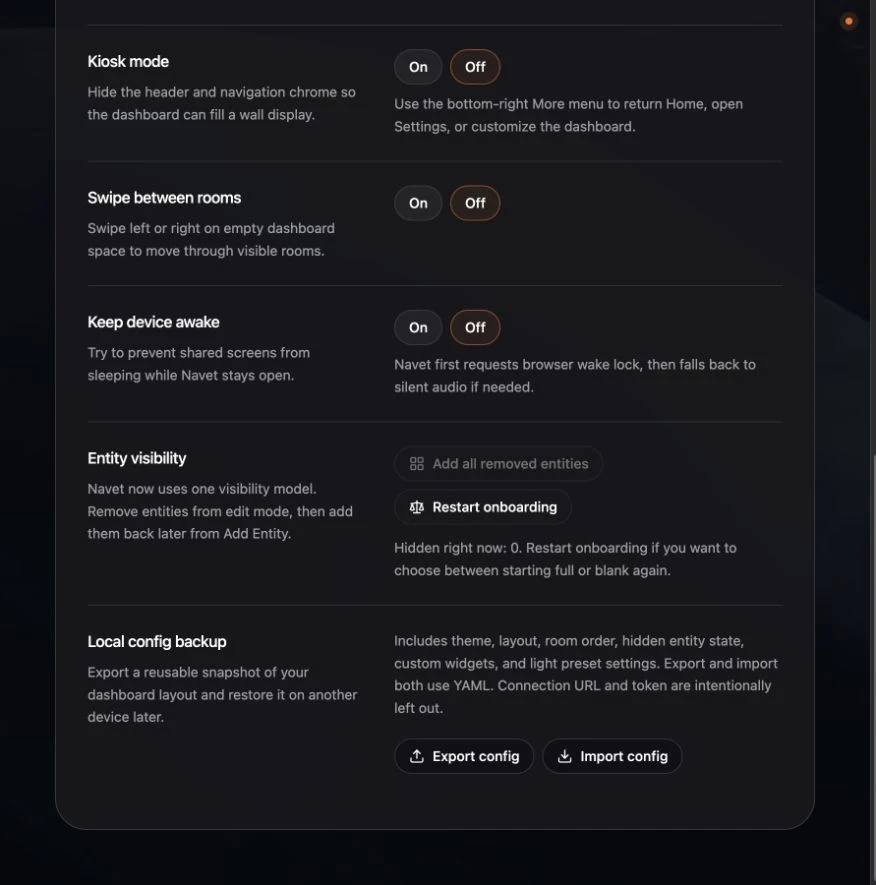
Keep-awake is best effort. Some embedded browsers, power-saving modes, and operating-system rules can still turn off a display.
Embedded page is blocked
When a custom sidebar page reports that it may be blocking embedding:
- Choose Retry once.
- Choose Open externally if the site still refuses to load.
- Edit the shortcut to open a new browser tab instead of an embedded page.
Sites can block framing through their own security headers; Navet cannot override that policy.
Prevent getting locked out
- Test Kiosk control before mounting the display.
- Keep browser or operating-system access available.
- Keep the display independent until its kiosk behavior is confirmed; link it to a Device settings group afterward if needed.
- Record the Navet address outside the kiosk.