


The Lights section groups supported lights and switches by room while keeping common actions close to the current state.
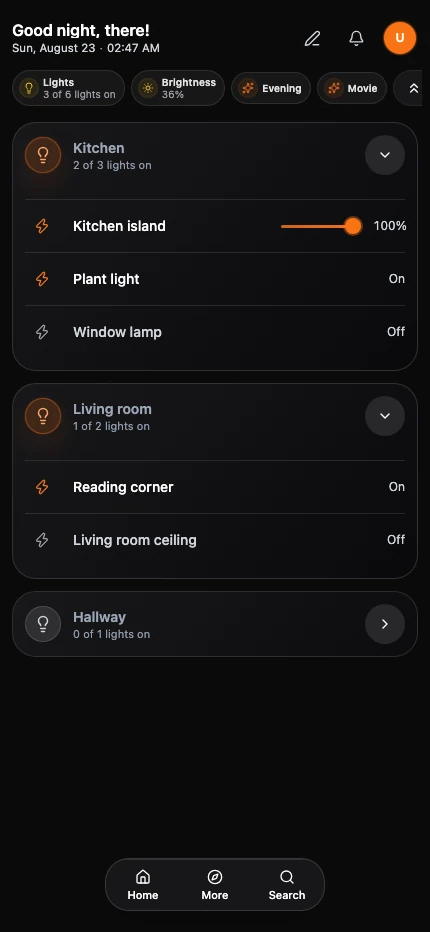
The summary strip shows how many lights are on, average brightness when available, and unavailable lights that need attention. Quick scenes and Expand all, Collapse all, or whole-home power actions stay beside that summary. Select Unavailable to open the affected room and jump to its first unavailable light.
Control a room
- Open Lights.
- Choose a room group. Rooms needing attention appear first, followed by active and inactive rooms.
- Use the room icon to turn the available room lights on or off.
- Adjust room brightness when supported.
Expand a group to work with individual lights.
Control one light
Open the light card to use available controls:
- Power.
- Brightness.
- Color temperature.
- Color.
- Saved brightness or temperature presets.
The card only shows controls supported by the entity. Turn the light on, then select the palette
button to choose a color with the hue strip or a preset swatch. Select Detailed color to adjust
saturation and brightness or enter a six-digit hex color such as #ff8800. Drag changes apply when
you release the control; hex changes apply when you leave the field or close the picker.
Select the thermometer button to adjust Warmth in Kelvin (K). Lower values give warmer light and higher values give cooler light. The strip’s range matches the light’s capabilities. Brightness stays available on the card while either picker is open.
Light dialog
Open a light’s controls dialog for a larger brightness slider, named brightness presets, and a power button. Drag the vertical slider up to brighten the light or down to dim it. Select a preset to apply its brightness immediately.
Choose Warmth, Colors, or Effects below the brightness controls. Only supported controls appear. Turn the light on to adjust them. In Colors, use the hue strip or a preset. In Effects, select an effect or No effect.
The header shows the room and light state above the card name. Open the three-dot menu beside Close to Edit room, Edit card name, manage Presets, or Customize the card’s tint or icon. The entity ID appears at the bottom of the menu. Choose Hide or Remove to remove the card from its dashboard view. For a card placed in the Home layout, choose Remove from home. Select Back to controls to return to the light controls. Select Done or close the dialog when finished.
Switch card measurements
Switch cards automatically show available measurements, such as power, voltage, current, and energy. Card size determines how many readings fit. Readings remain visible when a switch is off, and new measurements appear as the provider supplies them.
Open the switch card’s settings and choose Metrics to remove or restore readings. Navet remembers removed measurements for that card, including when a reading temporarily disappears.
Run a scene
Choose a scene shortcut to activate the scene configured in your smart-home provider.
If a light is missing
Confirm that it is assigned to the expected room, visible in Navet, and supplied by a selected provider. Then follow Rooms, devices, or entities are missing.