


When live playback fails, Navet shows a snapshot or an error. Start by checking the camera in your smart-home provider, then review its playback settings in Navet.
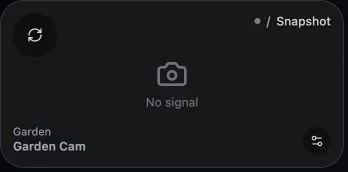
Check the basics
- Confirm that the camera is available in the provider.
- Verify that its snapshot updates.
- Open the camera settings dialog and review its playback preferences.
- Reload the camera once.
Review camera settings
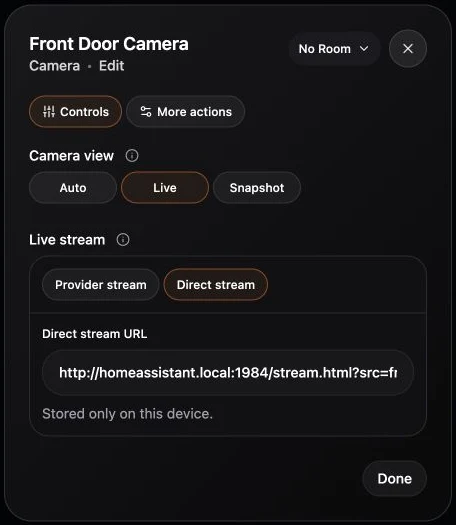
Open the camera settings dialog and check:
- Preferred playback mode.
- A configured direct-stream URL, when your setup requires one.
- Whether a configured direct-stream URL is reachable from the browser running Navet.
Understand fallback
Navet tries the live playback formats supported by your camera, such as WebRTC, MSE, HLS, or MJPEG. If one fails, it tries the next available format.
Deployment checks
- Panel and Ingress paths can require Home Assistant resource rewriting.
- In standalone mode, Home Assistant-provided snapshots, HLS playlists, and MJPEG fallbacks use Navet’s same-origin proxy. The browser does not need a direct route to Home Assistant for those resources.
- Authenticated, signed, relative, and expiring Home Assistant URLs stay on that proxy rather than being treated as ordinary public links.
- A custom go2rtc direct-stream URL is intentionally browser-loaded and must be reachable from the current browser, including across a VPN when away.
- A Home Assistant camera may advertise WebRTC even when its actual offer or source fails. Navet then tries the next provider-supported transport. Native WebRTC may also negotiate a media route that the current VPN cannot reach; HLS or MJPEG fallback remains on Navet’s proxy. Verify those transports work in Home Assistant if every live option fails.
Collect useful support details
Record the Navet version, installation mode, camera entity, preferred playback mode, exact visible error, and whether snapshots work. Do not include credentials or signed URLs in a public report.