


Hiding a provider-backed card removes it from the dashboard presentation; it does not delete the entity from the provider.

Add removed entities back
- Open Settings → Dashboard.
- Find Entity visibility.
- Review the hidden-entity summary.
- Choose Restore entities.
- Restore an individual entity or choose Restore all.
Navet restores eligible automatically generated cards. You can hide individual cards again in Home edit mode.
Restart onboarding
- Open Settings → Dashboard.
- Under Setup, choose Restart onboarding.
- Read the confirmation, then choose Restart.
- Navet returns to Home and reopens the startup wizard when provider entities are loaded.
Choose Start with all entities, Start with a blank dashboard, or Import a config file. The first two routes continue through language, formats, and appearance. Import applies a saved Navet YAML configuration directly. See Complete the startup wizard.
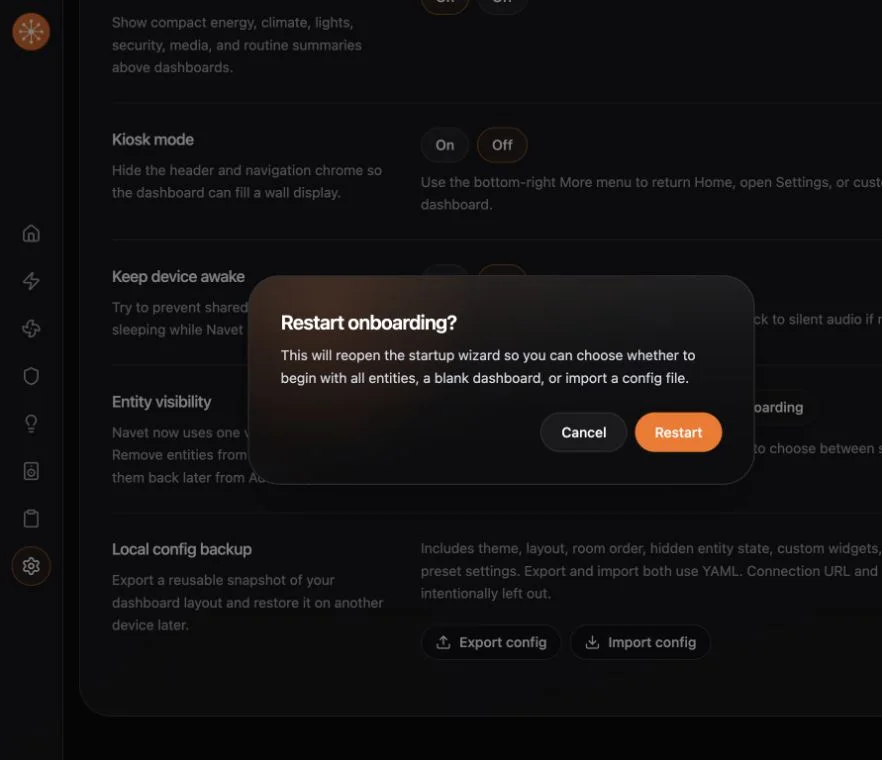
Restarting alone reopens setup; it does not reset provider credentials or clear your layout. Finishing the blank route clears the Home layout and custom cards and hides the loaded entities. Importing can replace current configuration. Export a backup first if you want to preserve an existing setup.
The public demo renders a preset dashboard without the startup wizard. Use an installed Navet instance to repeat onboarding.
If one entity still does not appear
Open Add Card and search for it. Generic entity cards may be available even when the entity does not have a dedicated Navet card.
If it is absent from both places, follow Rooms, devices, or entities are missing.