


Navet can reduce expensive visual effects while preserving information, layout meaning, and controls.
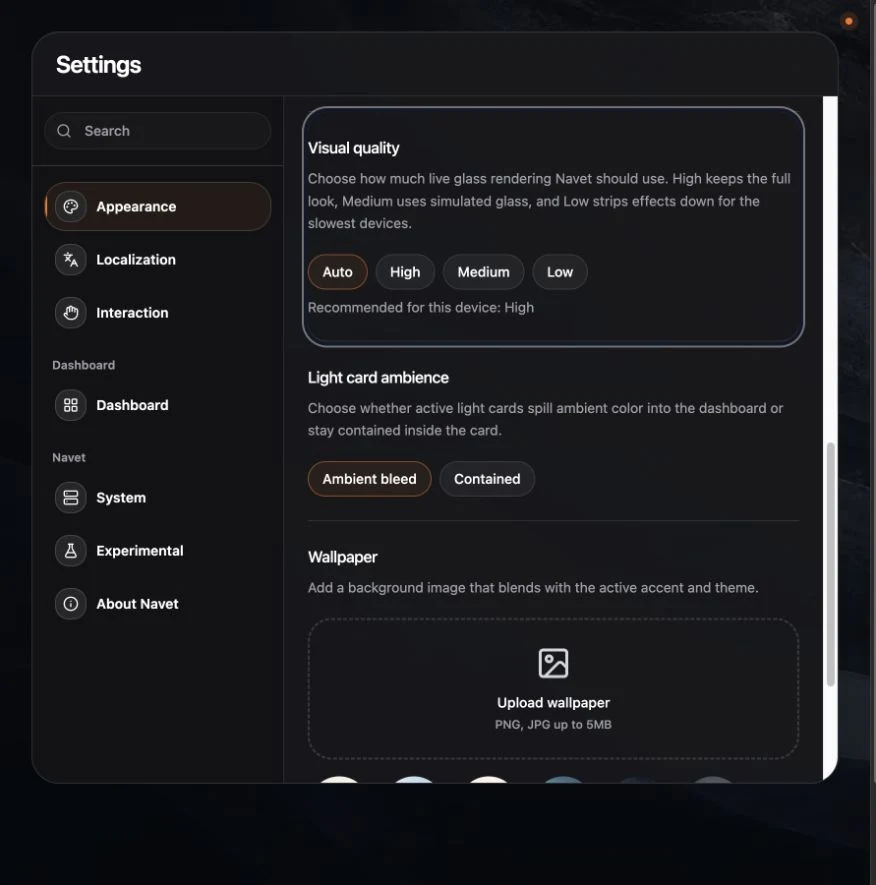
Start with Auto
- Open Settings → Appearance on the low-power screen.
- Find Visual quality.
- Choose Auto.
ARM Linux browsers such as Raspberry Pi OS normally start in a lower-cost tier automatically.
Choose Low manually
Use Low when scrolling, live updates, or dialogs remain sluggish. Low quality reduces:
- Backdrop and filter effects.
- Large or layered shadows.
- Animated transitions and ambient layers.
- Other compositor-heavy decoration.
It does not remove device state or household controls.
Reduce motion
Use the browser or operating system’s reduced-motion preference when motion is distracting or hardware is constrained. Low visual quality also strips expensive transitions and ambient effects.
Choose whether to share the setting
Visual quality stays on the current device by default, so a wall panel can remain on Low while a phone or desktop uses richer rendering. If several low-power panels should match, open Settings → Display & controls → Device settings and create a sync group.
Additional checks
- Prefer one browser tab dedicated to Navet.
- Avoid extremely large external room images or photo-frame sources.
- Use Default spacing if denser layouts make touch or scrolling harder.
- Confirm that the browser and display resolution match the panel.