


A second dashboard can focus on one floor, one room group, or one household screen without replacing your default Home dashboard.
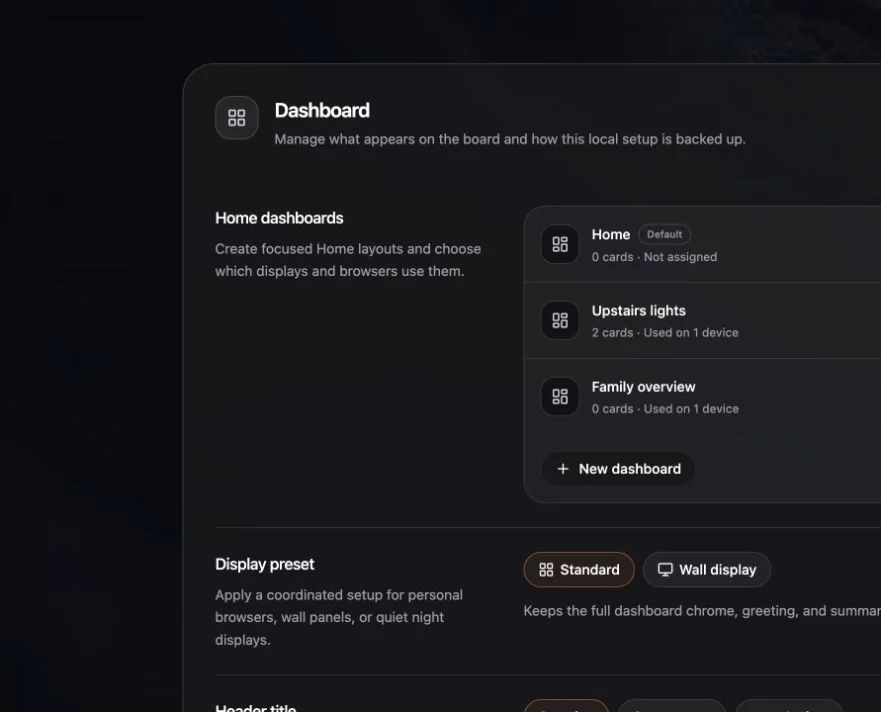
Open dashboard management
- Open the dashboard switcher from Home.
- Choose Manage dashboards.
- Choose New dashboard.
You can also start from Settings → Dashboard → Home dashboards.
Choose a name and starting point
Enter a short household name such as Upstairs, Kitchen, or Wall panel. Then choose:
- Choose rooms to seed the dashboard from selected rooms and groups.
- Copy current to duplicate the active dashboard before editing it.
- Blank to start without cards.
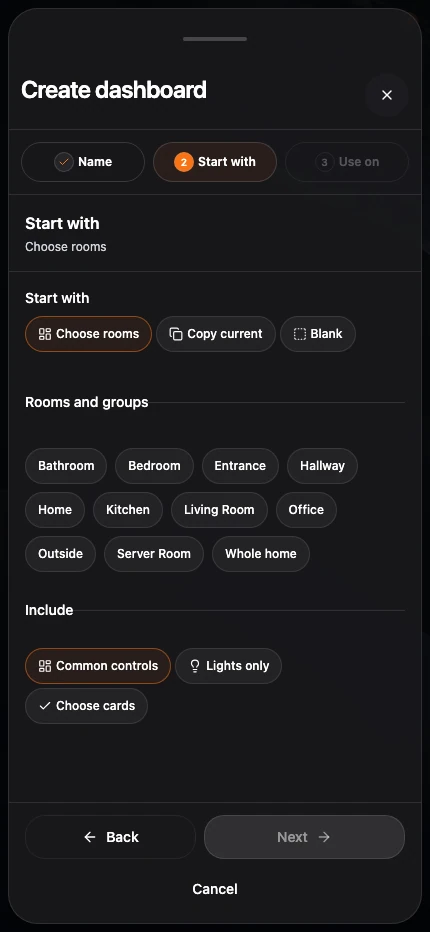
On phones, the flow opens as a full-height cover sheet. Name, Start with, and Use on remain visible as progress steps while Back and Next stay anchored at the bottom.
When choosing rooms, select the content you want:
- Common controls for a broad everyday starting point.
- Lights only for a focused lighting dashboard.
- Choose cards for a more deliberate selection.
Decide where it should open
Under Use on, choose:
- This display to make the new dashboard open by default on the current browser or display.
- Not yet to create it without changing a device assignment.
Choose Create dashboard.
Expected result
Navet opens the new dashboard and enters edit mode so you can finish the layout. The original dashboard remains available in the switcher.
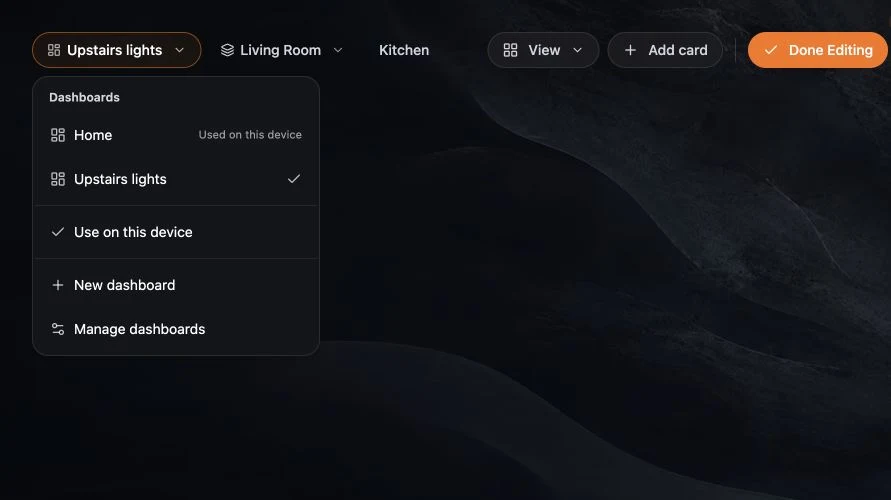
If you do not see New dashboard
Navet limits the number of dashboards. Open Manage dashboards and remove an unused dashboard, or repurpose an existing one.