


Connection recovery differs by deployment mode. Avoid clearing all dashboard data before checking the provider and address.
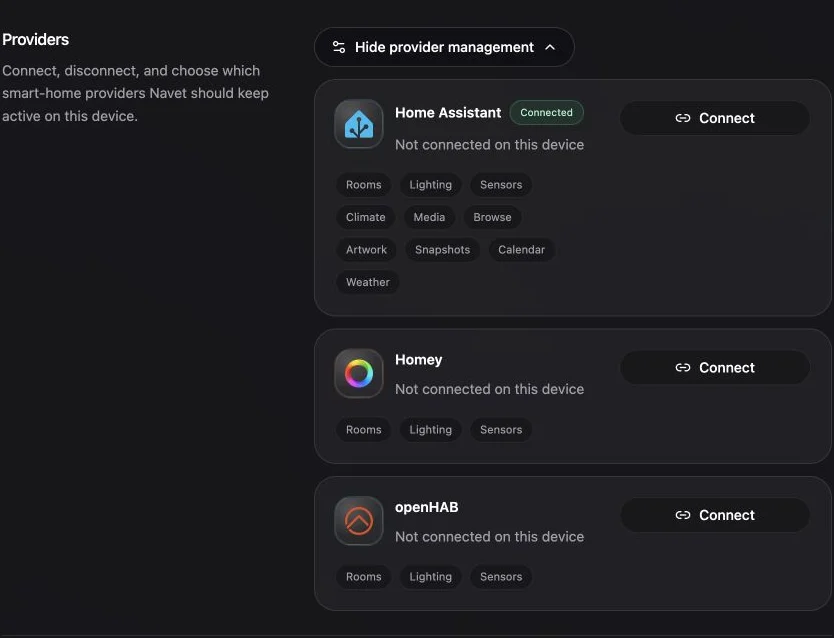
Check the visible error
Common causes include:
- An unreachable provider address.
- A LAN, VPN, Tailscale, or external Home Assistant authorization route that is unavailable from the current browser during sign-in.
- DNS, firewall, or CORS restrictions.
- HTTP and HTTPS mismatch.
- An expired browser-specific session.
- A standalone container that cannot reach the configured upstream.
Reconnect from Settings
- Open Settings → System.
- Review Connection and Providers.
- Confirm the provider address.
- Choose Connect or repeat the supported sign-in flow.
Sign in at home or through a VPN
Standalone Navet keeps the browser-facing Home Assistant address separate from its trusted upstream. This lets the same installation open Home Assistant through a LAN address at home and a VPN, Tailscale, or external address while away.
- From the device that is signing in, confirm that you can open Home Assistant directly at the address you plan to use.
- Enter that same address in Navet.
- Choose Continue and finish the Home Assistant sign-in.
Navet uses the address entered in the login form for both the authorization page and the token
exchange. That address must be reachable from your browser and from Navet. If NAVET_HASS_URL
is explicitly configured, Navet uses it for the token exchange and API traffic; the browser address
must reach that same Home Assistant installation.
Read the Home Assistant return error
- Navet could not reach Home Assistant to finish sign-in means Navet could not contact the token endpoint. Check the address from the Navet host or container.
- Home Assistant rejected the sign-in code means the token endpoint rejected the exchange.
Start a fresh sign-in. If
NAVET_HASS_URLis configured, confirm that it and the browser address reach the same installation. - Home Assistant returned an invalid sign-in response means the response was incomplete or malformed. Start a fresh sign-in rather than reusing the old return URL.
Change the Home Assistant address
Enter the replacement address in Navet and sign in with Home Assistant. If NAVET_HASS_URL is set
in Compose, update that configuration and recreate the container when the upstream address changes.
Stuck on Starting your dashboard
An existing standalone session should renew through Navet even when the browser cannot reach Home Assistant’s LAN address.
- Reload Navet once to activate the current application version.
- Confirm that the VPN route to Navet is still active.
- Confirm from the Docker host that the Navet container can reach its trusted Home Assistant upstream.
- If a recovery action appears, choose Retry connection for a temporary outage. Choose Back to login when the saved Home Assistant session cannot be restored and you need to sign in again.
Deployment-specific checks
- Home Assistant Ingress should reuse the parent Home Assistant session.
- Standalone Docker needs a browser-reachable Home Assistant address while authorization is open and a trusted upstream reachable from the Navet container. They may be different routes to the same Home Assistant installation; routine dashboard use and token renewal use the latter through Navet’s same-origin proxy.
- openHAB must be reachable from the Navet container and accept the configured credentials.
- Homey OAuth requires the configured client and callback route.
Reset only the affected connection
Use Reset connection or Disconnect for the affected provider, then reconnect. Signing out ends the Navet session on the current device; it does not delete provider devices.
Report safely
Include the Navet version, installation mode, provider, failing address hostname, HTTP status, and exact visible error. Remove tokens, cookies, passwords, and signed URLs.