


Navet supports Liquid Glass, dark, light, and black theme families, built-in accent choices, a custom accent, and built-in or uploaded wallpapers.
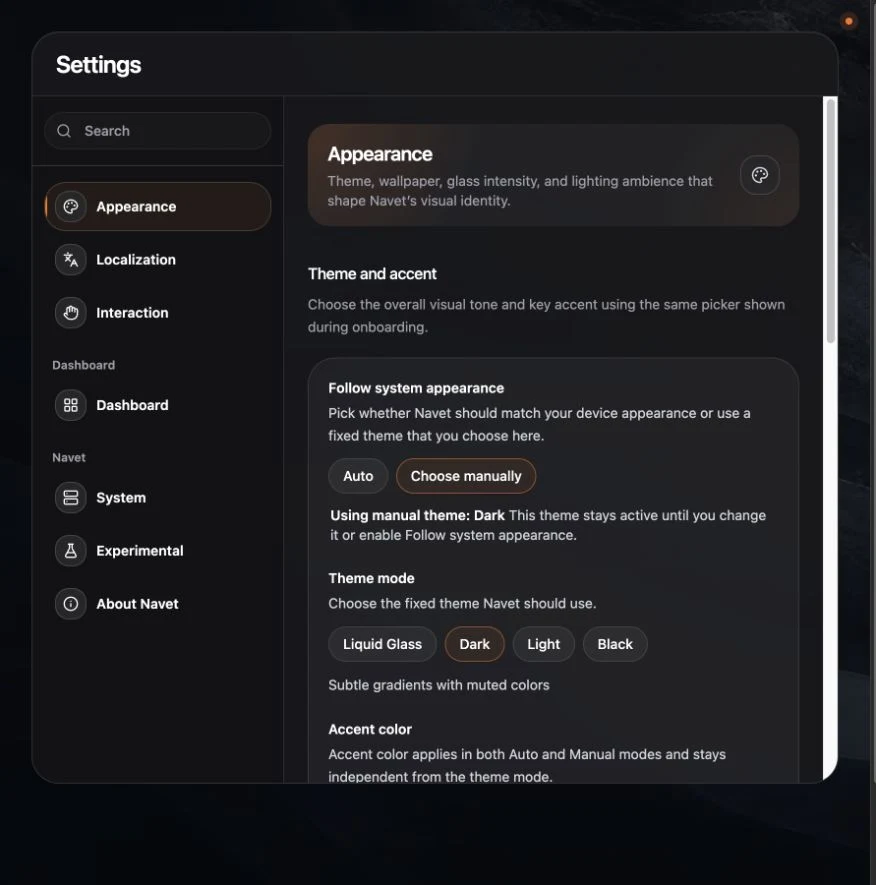
Choose a theme
- Open Settings → Appearance.
- Choose whether Navet should follow the system appearance automatically.
- For manual control, select Liquid Glass, Dark, Light, or Black.
Only Liquid Glass uses frosted or translucent card surfaces. Dark and Black remain dark-surface families.
Choose an accent
Select a built-in accent or define a custom accent. The accent emphasizes state and controls; it does not replace semantic colors for warnings, security, or device state.
Choose a wallpaper
- Select a built-in wallpaper, or choose Upload wallpaper. If a wallpaper is already set, use Replace wallpaper to choose a different file.
- For an upload, use a PNG or JPG up to the size shown in Settings.
- The selection applies immediately; review it in the preview and on your dashboard.
Choose Remove wallpaper to return to the theme background.
During first-run onboarding, only the built-in wallpaper choices are available. Upload, replacement, removal, and Auto appearance are available here in Settings after setup.
Light card ambience
Choose whether active light cards use Ambient bleed or stay Contained. Lower visual-quality modes disable expensive ambience automatically.
Apply to the right screens
Visual quality and layout stay independent on each device by default. To reuse them elsewhere, open Settings → Display & controls → Device settings, then either copy the current settings once or create a sync group. See Keep dashboards synchronized across devices.