


Layout packs provide a starting arrangement. They remain ordinary editable Home layouts after being applied.
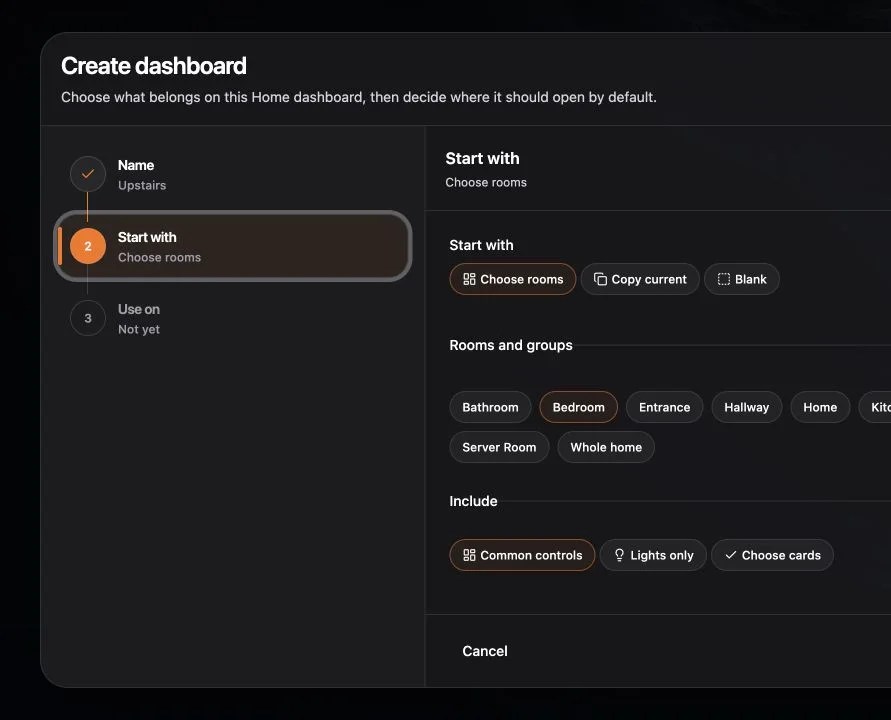
Before applying a pack
Export a backup if the current layout matters. A pack can replace or substantially rearrange the active Home dashboard.
Apply a pack
- Open the target Home dashboard.
- Choose Customize.
- Open the Home layout or personalization choices.
- Preview a pack such as Command center, Security monitor, or Energy wall.
- Apply the pack.
Choose Custom when you want to create sections and columns without a curated starting layout.
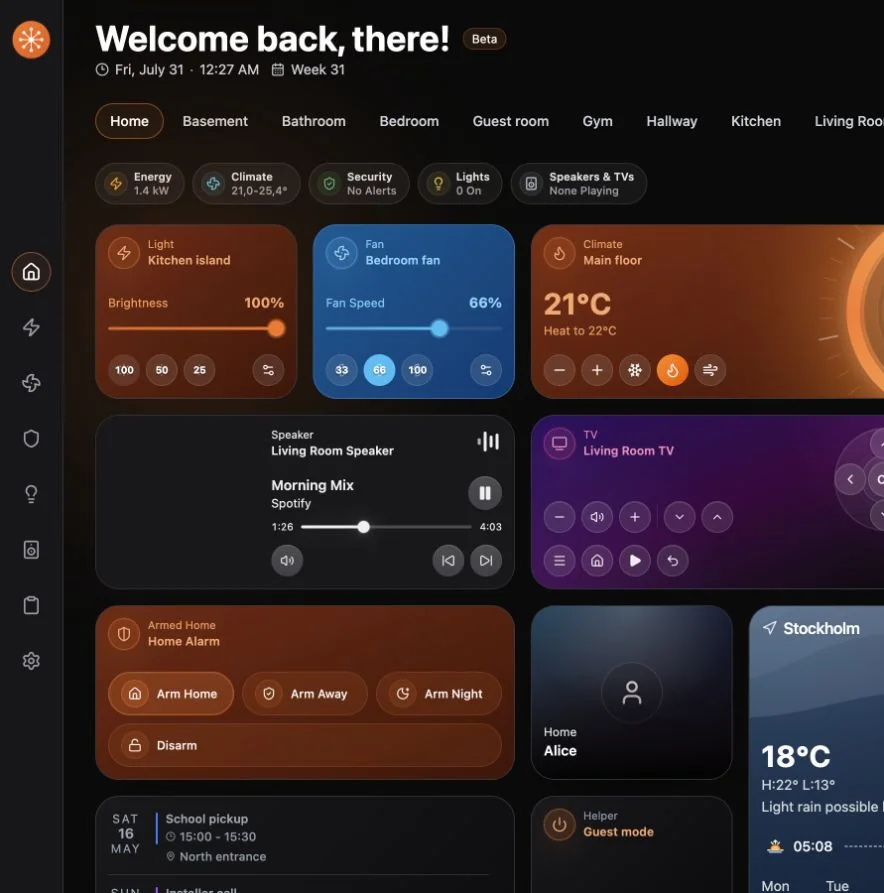
Refine the result
After applying a pack:
- Move or resize cards.
- Remove content that is not useful on this dashboard.
- Add missing provider entities or widgets.
- Lock stable cards.
- Use Undo while the edit history is still available.
Use packs with multiple dashboards
Create a focused dashboard first, then apply the pack there. This preserves the default dashboard while you evaluate the result.
If a pack has empty areas
The pack can only show content available from the selected providers. Add an equivalent card manually, or choose a pack aligned with the capabilities currently available.