


Home edit mode changes the active dashboard layout. It does not reconfigure the underlying device unless a separate dialog explicitly describes a provider change.
Watch the dashboard tutorial
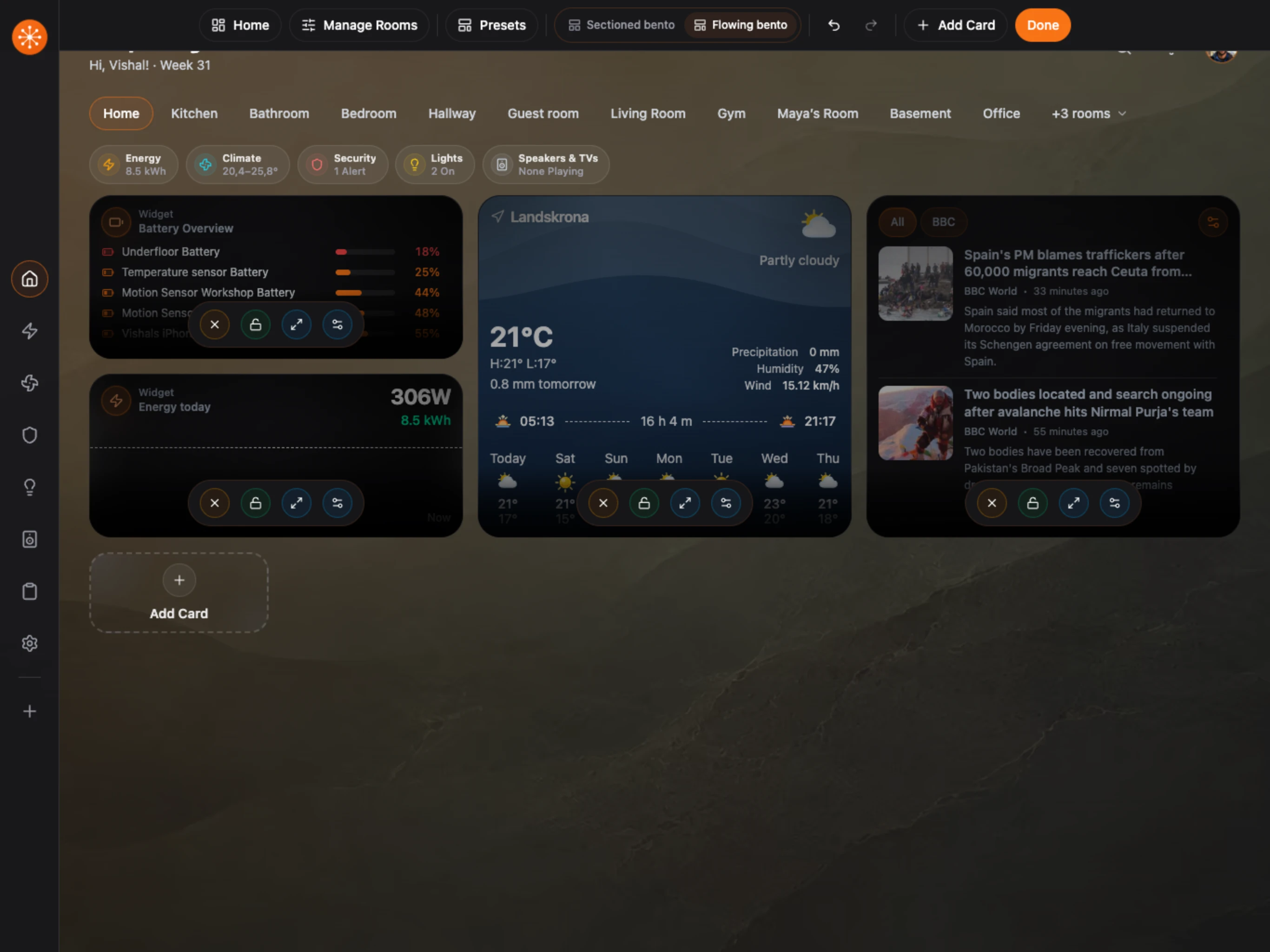
Build on the included Home dashboard: add cards, choose sizes, arrange sections with mouse drag and drop, and check the result on a phone. The recording uses Home Assistant as its example provider; the dashboard workflow itself is provider-neutral.
Watch the dashboard tutorial on YouTube. New to Navet? Start with the setup guide.
Enter edit mode
- Open the Home dashboard you want to change.
- Choose Customize beside room navigation when the side panel is open. Otherwise, use Customize in the greeting row. On phones, use the edit control in the header.
- Confirm that the editing command bar appears.
On screens 1100px wide or narrower, choose More actions for room management, presets, layout choices, and section controls. Add Card, Undo, Redo, and Done remain on the bar.
Customize the side panel
Use Settings → Display & controls → Side panel to turn the panel on or off for this device. Turning it off restores the existing header and navigation without changing your saved panel content or collapse preference.
The side panel beside the desktop navigation rail holds an ordered collection of controls and information that stays visible while you switch rooms. Use Hide side panel to give that space back to the dashboard, and Show side panel to restore it. This control is separate from the Home Assistant kiosk control. The collapsed state is saved for this device. Long panels scroll independently of the dashboard.
Choose Customize to reveal editing controls for both the dashboard and its side panel. Use Add item in the side panel to add a device, camera, weather, calendar, chores, security status, clock and date, greeting, or note. The picker uses the dashboard’s searchable item library, with category navigation, room filters, and sorting. Choose Add item beside each item to add it immediately. The picker stays open so you can add several camera or weather sources; each becomes a separate panel item. Choose Done to close the picker. Adding a note or greeting opens its text editor. Devices appear as compact rows. Select the icon to toggle power where supported, or select the name or state to open the same entity dialog used by its dashboard card. Brightness and temperature stay visible as values. Media players show track details without inline controls; select their name to open the media dialog. Cameras use their existing playback settings and snapshot fallback. The calendar shows up to three upcoming events from the selected source; tap an event for details. Chores show up to three outstanding jobs for today, including overdue jobs. Use the action beside a chore to mark it done, claim it, or approve it. If several people are eligible, choose the person from the action menu. Drag items to reorder them, or use their More actions menu to move or remove them. The pencil opens a focused dialog for that item’s source or content. Changes save as you edit; choose Done beside Add item or on the dashboard editing bar to finish. Panel controls stay hidden during everyday use.
Each saved dashboard has a common side panel. Home and feature sections such as Energy and Security use that common panel. Rooms also use it unless you choose a custom room panel.
Choose Customize from any room to edit the panel currently displayed. The compact selector below Add item and Done identifies it as Dashboard panel or [room] panel. Changes to the dashboard panel apply to Home and every room using that panel. Changes to a room panel apply only to that room on this dashboard.
Open the selector and choose Create room panel to start an independent copy of the dashboard panel. Add, edit, reorder or remove items as usual. Removing every item leaves an empty room panel; renaming the room preserves it.
Use the selector to switch between Dashboard panel and the saved room panel. Switching keeps both panels and remembers your choice for that room. To remove a saved room panel, choose Delete room panel and confirm. That room then uses the dashboard panel. Other saved dashboards keep their own panels and selections; duplicating a dashboard copies them independently.
Existing camera, weather and security selections are preserved. Automatic uses the first source of that kind from your selected providers. A missing selected source stays unavailable rather than being replaced by another source.
The panel is available on landscape screens at least 1100 pixels wide and 600 pixels tall. Other screen sizes retain the existing header and navigation. Resizing or rotating the screen preserves your panel collapse preference. Customize, Assist when supported, notifications, and account controls share the room-navigation row when the panel is open. They return to the greeting row when it is collapsed or disabled. Choose the search icon in that row to open search when needed.
Screensaver mode
Open Settings → Display & controls → Screensaver and choose On to enable it for this device. It is off by default. Choose Preview screensaver to open it immediately, or leave the dashboard idle for five minutes. Tap anywhere or press a key to return; the dismissal does not activate a control underneath. Your dashboard stays open behind it.
The screensaver shows the local time and date using your language and clock preferences. It uses your dashboard wallpaper, with a bundled wallpaper as the fallback. Current weather follows the first weather item in the active Home dashboard’s side panel, even when the panel is disabled. A triggered alarm takes priority over an active timer. Security visibility follows that dashboard’s companion setting. Missing sources stay unavailable, and disconnected sources do not show cached values as live. Camera images and personal calendar details are not shown.
Automatic entry waits while you are editing, using a form, viewing a dialog or menu, or navigating an embedded custom page. Hidden tabs pause the idle timer and start a fresh five-minute delay when you return. The mode uses the browser’s existing display area; Keep device awake remains a separate setting for preventing the display from sleeping.
Arrange cards
While editing, you can:
- Drag a card to another position.
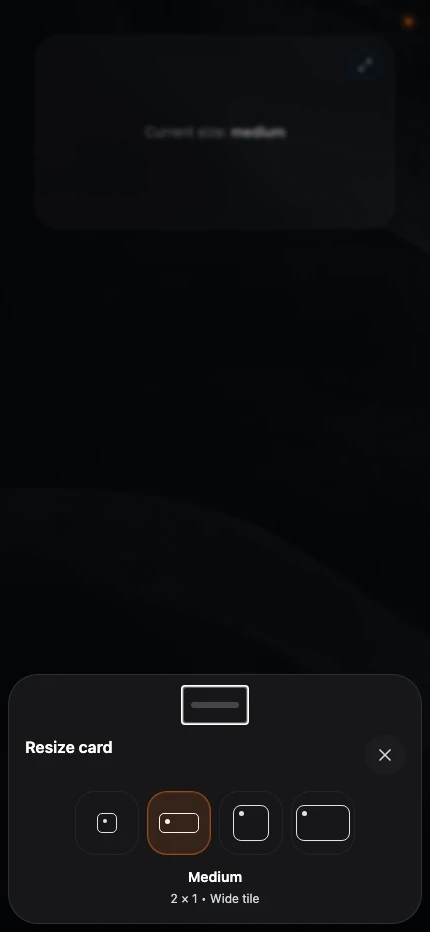
- Change its supported size.
- Move it into another section or column.
- Optionally lock a card to disable its input outside edit mode, which can be useful for information cards. This does not lock its layout position.
- Hide an automatically added entity.
- Delete a Navet widget or manually added card.
Available sizes depend on the card type and screen width.

Use undo and redo
Choose Undo to reverse the latest layout change and Redo to reapply it. These controls are most useful before you leave edit mode.
Finish
Choose Done. Navet saves the active Home layout to the dashboard profile. Enter content such as a Quick Note after leaving edit mode.
If another registered device is editing the shared profile at the same time, Navet may ask which version to keep. See Resolve a synchronization conflict.
Restore a hidden card
Open Settings → Dashboard → Entity visibility and use the restore action. See Restore removed entities.
Before making a large change
Use Back up and restore configuration before replacing a large layout or experimenting with several packs.