


Device actions in the Rooms workspace distinguish dashboard visibility from provider-backed room assignment.
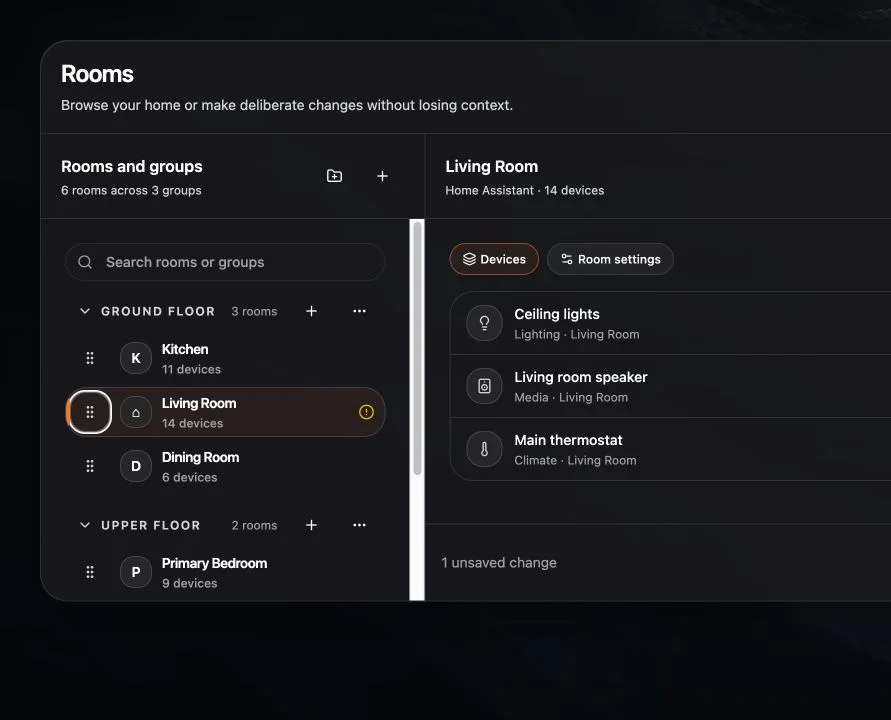
Open the device list
- Open the Rooms workspace.
- Select a room.
- Open Devices.
Hide a device from the dashboard
Find the device and choose Hide. The device moves to Hidden and remains present in the provider.
Use Show to restore it to the dashboard.
Move a device
- Open the device’s action menu.
- Choose Move.
- Search for and select the destination room.
- Review whether the move affects only Navet or also the connected provider.
- Save the change.
Remove a manually placed device
Remove takes the device out of the current dashboard placement. It is not the same as deleting the device from the provider.
If a device has no room
Select Not in a room, then move it into the appropriate room. A provider may continue to report it as unassigned when room administration is unsupported.
If the device disappears everywhere
Clear room filters, check Hidden, and search Add Card. Then use Rooms, devices, or entities are missing.