


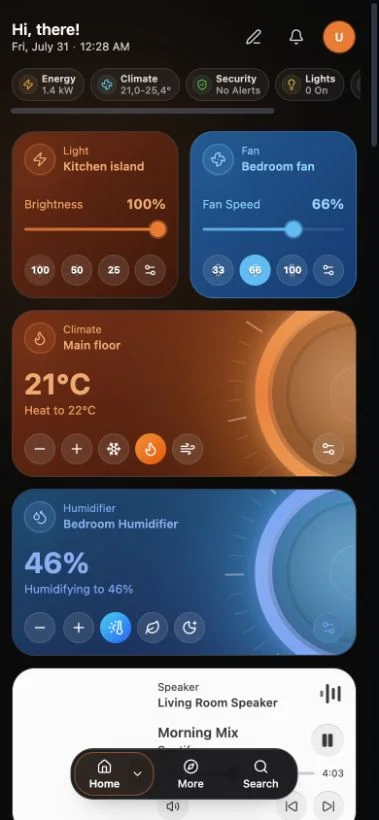
Adding Navet to your phone’s Home Screen gives it an app icon and opens it without the usual browser controls. It continues to use your self-hosted Navet installation.
Before you start
- Open Navet from its normal trusted address.
- Sign in and confirm that the dashboard works in the browser.
- HTTPS is normally required outside local development.
Add Navet to your phone
iPhone
- Open Navet in Safari.
- Open the Share menu.
- Choose Add to Home Screen.
- Confirm the name and choose Add.
Android
- Open Navet in a supported browser.
- Open the browser menu.
- Choose Install app or Add to Home screen.
- Confirm the installation.
Apply an update
When Navet reports that an update is ready, choose the update action and allow the app to reload. Unsaved edits should be completed before reloading.
If installation is not offered
- Confirm that you are using the normal Navet address rather than an embedded preview.
- Check that the address is trusted and uses HTTPS where required.
- Reload after the first successful connection.
- On Home Assistant Ingress, browser installation behavior can differ from standalone Navet.
Installing the PWA does not copy your provider or dashboard data to Navet-operated servers.