


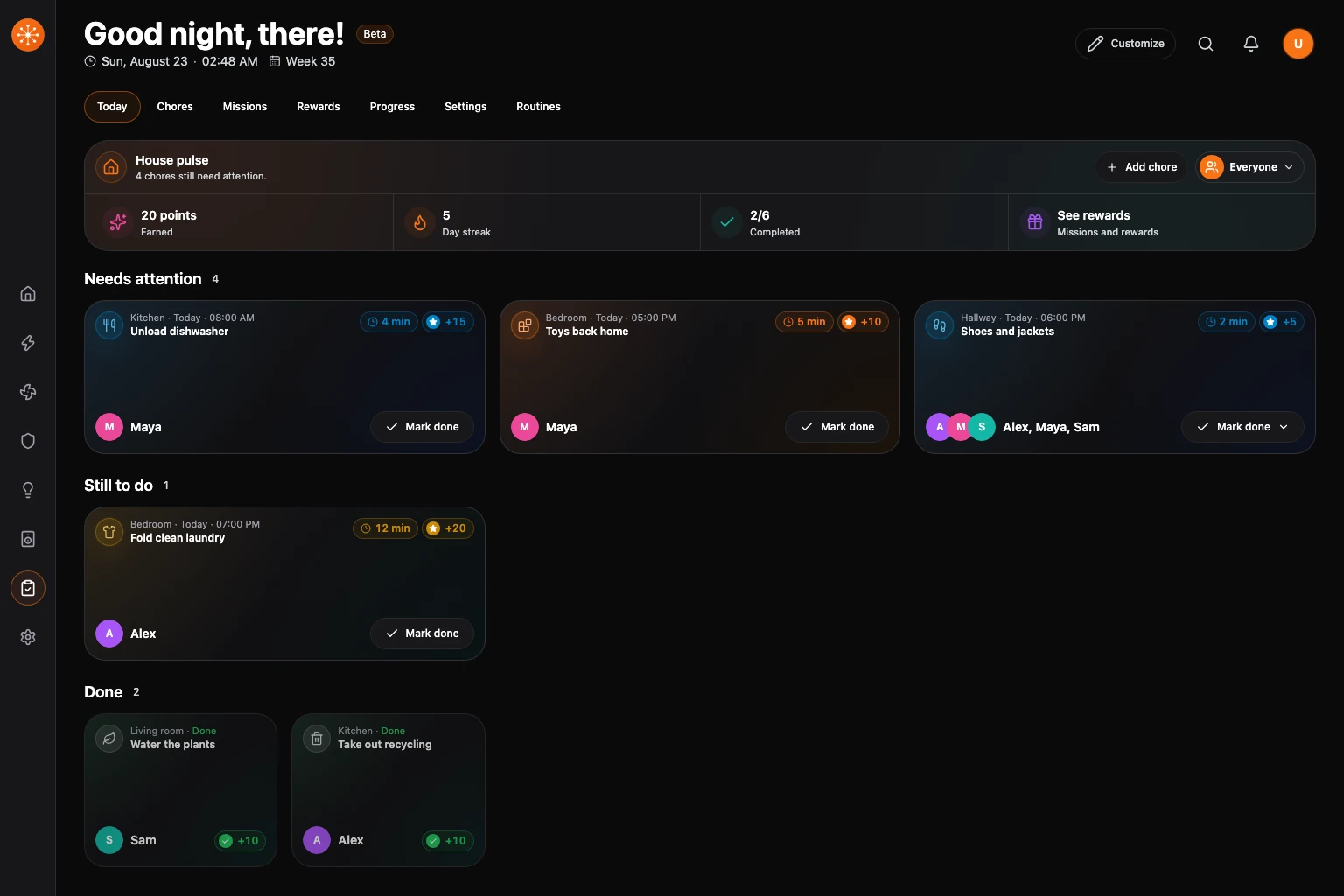
Open Household to keep ordinary home work beside the routines that already run your smart home. Today leads with overdue and due work, then remaining work and completed chores.
Chores use the shared household workspace supplied by your Navet installation. Check where chores are available if your runtime reports that shared storage is unavailable.
Complete the guided setup
- Open Household.
- Choose Create your chore list.
- In People, add everyone who will be assigned work. At least one person must have the Manager role.
- In Profiles & reminders, choose each person’s colour, icon or photo, reminder destination, and optional quiet hours. Device notifications use the connected provider’s notification service and require that provider’s app and notification permission on the person’s device.
- In Chores, add one or more recurring jobs.
- In Motivation (optional), choose a motivation style. Off keeps the experience focused on work and completion.
- In Protection (optional), create a management PIN if you want to protect planning changes.
- In Ready, review the setup and choose Open Today. Enter your PIN if prompted.
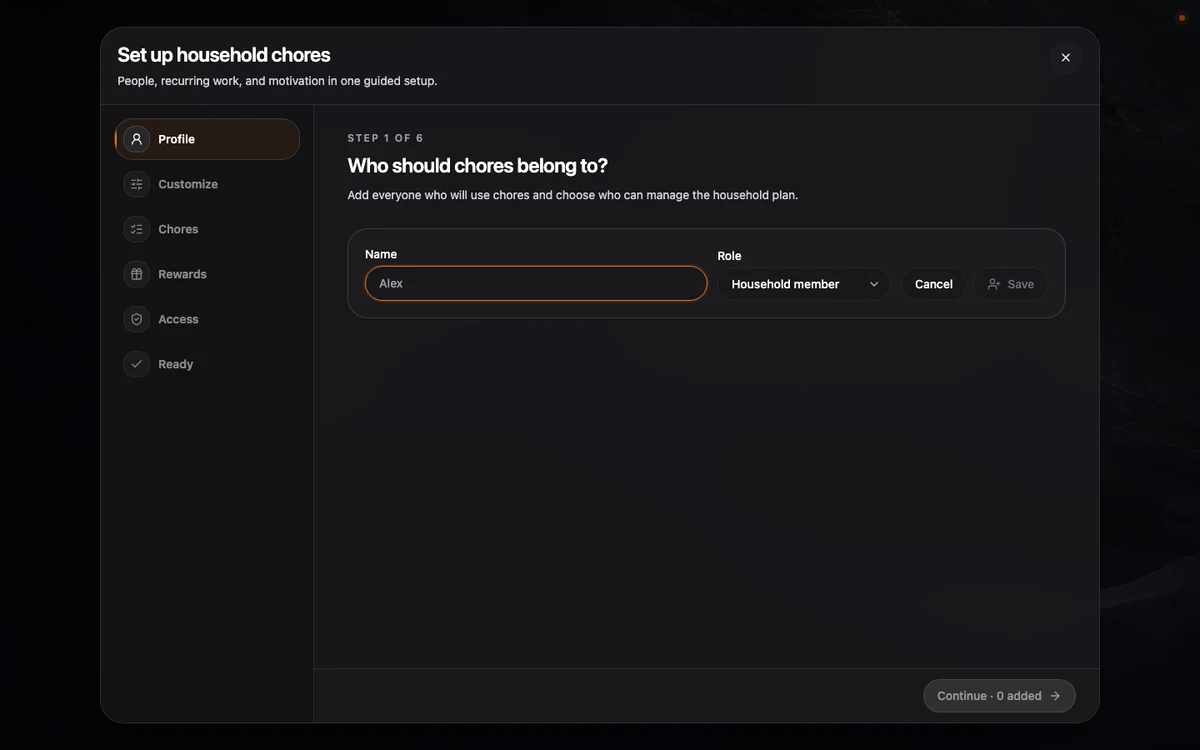
These are lightweight household profiles used for assignment and attribution. Choosing a profile on a shared screen is not an account sign-in. The optional management PIN protects planning and recovery actions without turning profiles into user accounts.
Add another chore
- Open Household → Chores.
- Choose Add chore.
- In The chore, choose a template or add a title, choose a room, and select a suggested Lucide icon or enter another icon name. Navet previews the icon. The More options section below the main fields holds instructions, estimated time, points, and a child-friendly title. Enter a chore name before continuing; Navet shows a message beside any field that needs fixing.
- Leave the colour swatch in the chore preview automatic to use a consistent colour for that chore, or choose a custom colour. Overdue and completed state colours take priority.
- Choose Next or Who does it in the sidebar, then choose who owns the work:
- One person assigns every occurrence to the selected person.
- Anyone can do it creates one shared occurrence for the selected participants.
- Everyone does it creates one occurrence per selected participant.
- Rotate between people moves through the selected participants in order. Choose Change person → Every week and a Change on weekday to keep the same person responsible throughout each week, or Each scheduled day to change person on each day the chore is due. Select the people who will do shared or rotating chores. A manager can approve work without being selected as a participant. In the edit form, More options → Require approval enables approval. Starts with chooses the first person; the preview shows the turn order and when responsibility changes.
- Choose Next or When it repeats in the sidebar, then choose how often the chore returns and set Start date and Due time. For weekly and every 2, 3, or 4 weeks, the start date sets the first due date and weekday. For monthly chores, it sets the day of the month. Add date limits if needed.
- Use the More options section below the schedule for missed-work behavior or reminders when needed. You can move between steps without losing your draft. On a small screen, the steps appear across the top instead of in a sidebar.
- Choose Add chore.
Navet schedules dates in the chore’s local time zone, including daylight-saving changes.
Work through Today
Use Using this screen to choose the person currently completing or approving work. The Today list shows Needs attention first, followed by remaining work. Completed chores stay visible as smaller cards, without a time tag, and show the points that were earned.
Next 7 days previews the next occurrences during the coming week, earliest first, even when nothing is due today. Each card includes its date and time. The row fits the screen width and follows the selected person. Open Chores to see the next scheduled date and time on each chore’s card, including later dates from the schedule prepared up to 45 days ahead.
- Choose Mark done to complete assigned work.
- Choose Claim first when a shared chore requires someone to take ownership.
- Choose Approve to finish a chore that requires approval.
- Choose Send back when the chore needs to be done again.
Completed work appears in the shared activity history and synchronizes across connected screens.
Read Chores today and rewards
Chores today keeps the daily summary in one row. When work is overdue, it leads with Needs attention, the overdue count, remaining work, and completed chores. Otherwise it shows earned points, current streak, and completed chores. To use missions and rewards, open Household → Settings → Motivation style and choose Light points, Family goals, or Child-friendly adventure. Open Missions or Rewards to create at least one mission or enabled reward goal. See rewards then appears in Chores today; choose it to reveal the supporting cards below the banner. Off hides these surfaces and keeps the saved goals and completion history.
Home shows a Chores summary pill when work remains. Each room has a Chores pill showing remaining or overdue work, or All done today. Choose the Chores pill on Home or in a room to open the Household dashboard and complete chores. The room summary stays in one scrollable row, keeping device controls in their chosen positions as chores change. The Chores pill is available even when the dashboard summary is hidden. An overdue chore uses the same red alert treatment as Security.
What to do next
- Use Missions or Rewards only when a shared goal helps the household. Core chores work without points.
- Open Progress for a weekly review and history export.
- Follow Manage and recover household chores to pause work, protect management, or create and restore backups.
Find automations and scripts
Open Household → Routines to use provider automations, scenes, and scripts.
Give children daily chores that switch weekly
For a daily chore each child completes separately, such as cleaning their own room, choose Everyone does it, select only the children, and set the schedule to Every day.
For daily work that switches between children each week, choose Rotate between people, select only the children, choose Every week, and set Change on to the handover weekday. Set the schedule to Every day. Starts with chooses the child responsible from the start date until the next handover day. Responsibility changes on that weekday even during weeks with no scheduled work. Use the same start date and handover weekday for related chores, and choose a different child in Starts with for chores that should begin with the other child.
Managers remain available to approve completed work even when excluded from assignments.