


Choose an icon and optional image to make each room easy to recognize in Navet.
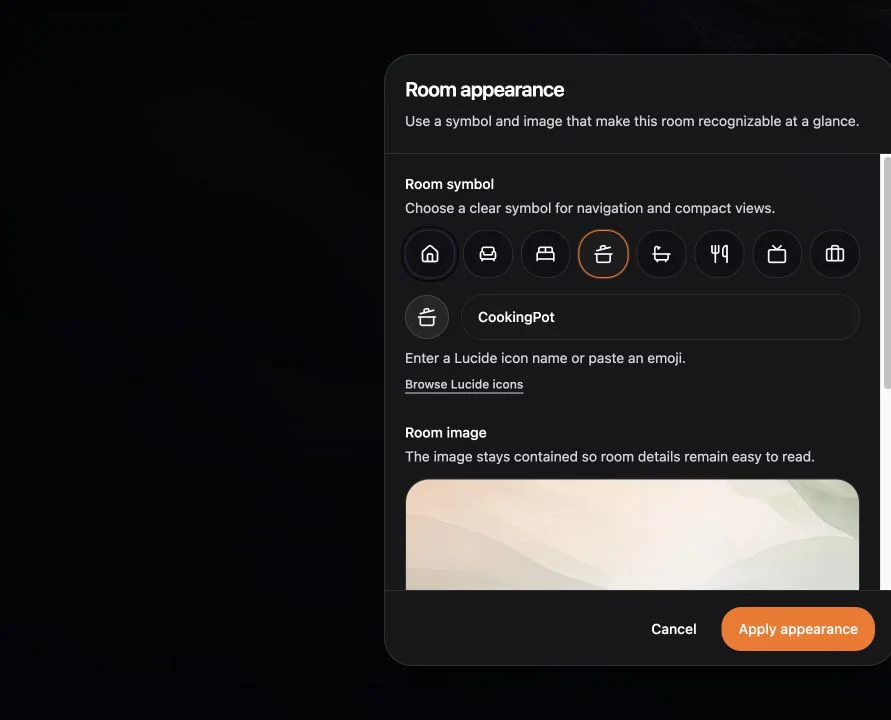
Change the room symbol
- Open the Rooms workspace.
- Select a room.
- Choose Room appearance.
- Choose a symbol.
Choose a room image
Select a built-in image or enter an http or https image address. Review the preview before
applying it.
External images can fail when the source blocks embedding, requires authentication, or becomes unavailable.
Remove an image
Choose Remove image, then apply the appearance. The room returns to its theme-native surface.
Keep room navigation readable
- Prefer images with a clear center and moderate contrast.
- Avoid text embedded in the image.
- Check the result in light, dark, black, and glass themes if household screens use different themes.
- Keep the room name recognizable without relying on the image alone.